Workout builder and exercise library
Build training days from exercises, sets, video, files, text, and nutrition items, including supersets, circuits, AMRAP, and EMOM blocks.
Workout programming
Turn a plan into structured training data: exercises, targets, blocks, media, personal exceptions, and client logs stay connected.
Build training days from exercises, sets, video, files, text, and nutrition items, including supersets, circuits, AMRAP, and EMOM blocks.
Keep the shared program intact while replacing, adding, hiding, or copying a workout day for one coaching client.
Clients record sets and group results; trainers see completed work, compliance, recent activity, previous-set context, and per-exercise feedback threads with photos or short technique videos.
Trainer problem
A video-only plan does not capture targets, structure, and the data a client should log, and retyping a program a trainer already has in a spreadsheet or PDF takes hours. A client may also need a trainer-approved alternative with a different prescription. Students need to distinguish personal workout energy from watching instructions or logging sets.
Client outcome
The client sees instructions and targets, records completed sets or rounds, and can check the previous result. Where alternatives are set up, the client can choose one before recording a result; the exercise performed and its prescription are kept in history. In the iOS app, the client also sees a personal calorie estimate for the workout with its source shown.
On iPad, choose a workout day in the plan structure and edit it next to the list when there is room. In a narrower window, open the day from the list. Save is on the toolbar and works with Command-S.
In the iOS app, clients start, pause and finish a calorie count on course video and program workout screens. They pick the type of activity and, for programs, Video or Exercises. Video mode counts playing time; exercise mode counts the workout timer including normal rest. Based on the client’s real body weight, FitSpace estimates approximate active calories. A complete enough result from a linked Apple Watch workout replaces the estimate, even when it is zero, instead of adding to it. Recent results are saved to the client’s account history.
On iPad, the video window has a Close button, also while the video loads or after an error. It stops playback and closes the window; swiping down still minimizes the video. On iPhone and in full-screen video this button is not shown.
On Web and iOS, prescribed rest is shown on its own clear line for each set. On iOS the buttons fit the screen width without squeezing How to perform next to the title, and the trainer preview shows the client’s set and result layout with locked fields and no saving.
On Web and iOS, the trainer’s prescription, the client’s actual result, an optional result note and Feedback are shown separately. Set cards show rest and per-set notes with labeled reps or time and weight fields; EMOM shows the interval. A block result needs an explicit number of rounds or minutes, and edits are marked as unsaved. iOS keeps prescribed weights exact, scrolls to distant days and adapts the bottom navigation to large text sizes.
On Web and iOS, Create plan on a program creates the workout plan at once. It takes the program’s title (you can change it), is attached to the program and opens with an empty first day ready for exercises (week 1, Monday; for a club, the next club date). You do not need to type a title or press Add day first. The AI row looks the same on every plan: with AI in your plan (Starter, Pro, Studio) it opens generation, without a plan subscription it opens plans, and on Lite, Solo or the plan trial it leads to Billing. Hide saved days appears only once a plan has two days; on iOS the hint about the computer version moved under the plan.
In the iOS app, when you replace an exercise video, the preview and cover switch to the new video, and the length and size of the old video are not carried over. The video picker opens on the source you chose (catalog or your uploads). Removing a video or a cover in the form removes it when you save.
Choose or create an exercise with instructions and a technique video.
On Web, clients play an exercise demo right in the How to perform panel, without a second video window that could block taps on the player on iPhone.
In the iOS app, the How to perform window stays open while the client scrolls the workout, and after closing the video or instructions the screen returns to the same exercise, also after rotating the phone.
In the iOS exercise form, Add technique video, Replace technique video and Add technique image respond across the whole row, and each source in the menu has a short explanation. Videos can come from the free FitSpace exercise catalog, your FitSpace videos, Photos or Files. Images can be uploaded from Files or reused from FitSpace. A video and up to six images are optional.
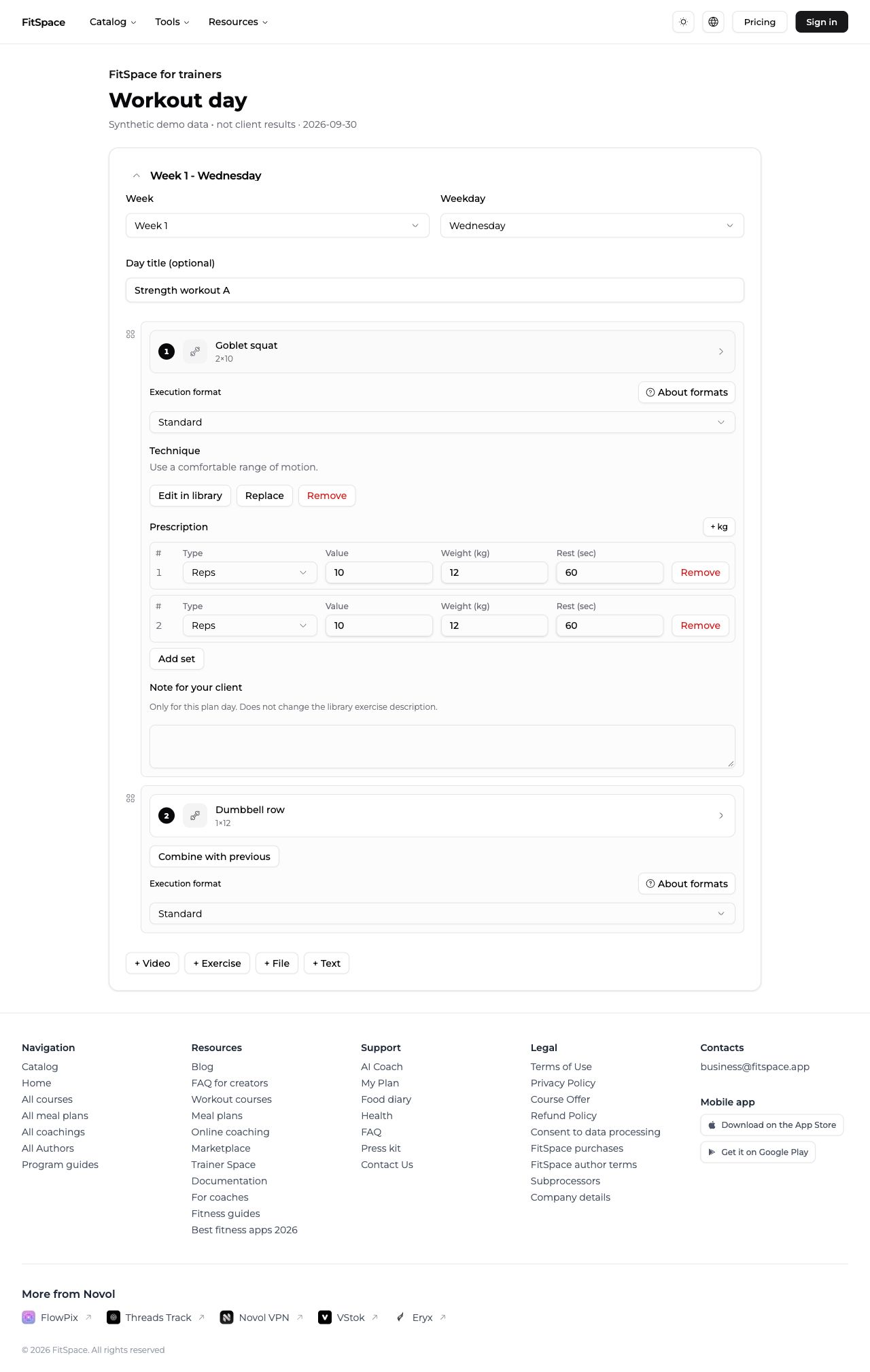
Set reps or time, weight, rest, notes, and an optional group format.
In the workout day editor on Web or iOS, add up to five alternatives from your exercise library, each with its own sets, reps or time, weight, rest and notes. Clients choose a variant on Web or iOS before their first result. A timed block result fixes the choice for every exercise in that block. Apple Watch runs the variant chosen on the phone. Coming in an Android app update: choosing a variant and seeing the chosen prescription, including rest and per-set notes.
In the iOS app, the workout day list shows the number of alternatives under each exercise title, including exercises inside blocks; it is hidden when there are none. With large text sizes, the text uses the full row and the reorder buttons move below it.
Save the day and review the client’s completed sets and history. When you edit the day later, what the client recorded on the remaining items is kept, and a day added later is dated from each client’s start date. Week 1, day 1 falls on the exact start date the client picks; other days keep their spacing, including days added later. For example, starting on Wednesday 28 October puts day 3 on Friday 30 October and week 2, day 1 on Wednesday 4 November. Existing schedules keep their dates until the client changes the start date; club and marathon dates are set by the program. This works the same on Web, iOS and Android. In the iOS app, saving the same day several times, or Save all, does not create the day twice, including when the connection drops while saving; newer edits in the open editor are kept.
On Web and iOS, a new program can be created from scratch, from a template or with AI (Android has no program builder for trainers). With AI on Starter, Pro or Studio (not on the plan trial, Lite or Solo), you enter a goal, level (intermediate by default), 2, 3 or 4 days per week, 4 or 6 weeks, and optional equipment and limitations. FitSpace shows a preview first; nothing is saved until you confirm. Weeks 2 through N repeat week 1; the last week’s day titles suggest adding weight if the reps felt easy. Equipment and limitations go into the description, and limitations also go into the notes of the first exercise of each workout. Confirming creates a draft program with a workout plan (workouts, chat and materials turned on; nutrition, check-ins, calls and community marked as planned) and opens it for editing: on Web the program’s workout plan, on iOS the program.
Or import a program you already have: upload an Excel, CSV, Numbers, PDF or Word file, up to six photos of a printed program, a Google Sheets or Docs link, or pasted text. FitSpace reads weeks, days, exercises, sets, weights, rest, supersets, circuits, AMRAP and EMOM, matches exercises to your library and to the demo-video catalog, and shows a draft you review and edit before it becomes a draft program with its workout plan.
Copy one of your own programs: in the Web or iOS program picker choose From my program, or Duplicate in a program’s menu. The copy is a draft named “… (copy)” with its own workout and nutrition plans, the same modules, materials, meeting link, cover, description and audience, and the price as a draft offer, so edits never reach the original or its clients. From the picker the copy takes the format you choose; Duplicate keeps the original’s format.
Long program, offer and workout plan descriptions on Web and iOS show as a short preview. When a description is cut off, a centered down arrow appears; it opens the full text in a separate window without stretching the workout list. Course and meal plan descriptions work the same way. Android shows descriptions as before.
Availability
| Surface | Workout builder and exercise library | Per-client workout personalization | Workout logs and exercise history |
|---|---|---|---|
| Trainer · Web | Available | Available | Available |
| Trainer · iOS | Available | Available | Available |
| Trainer · Android | Not available | Not available | Not available |
| Client · Web | Available | Available | Available |
| Client · iOS | Available | Available | Available |
| Client · Android | Available | Available | Available |
Yes. For a coaching client, a trainer can edit a personal copy, replace or add a day, hide a template day, and later restore the shared template.
The builder supports AMRAP, EMOM, circuit and superset groups with result logging. There are no live timers for these blocks during a workout yet.
Create a trainer account, build a program, and test the complete path with a demo client before publishing an offer.
Start registration